
Location types and hierarchy
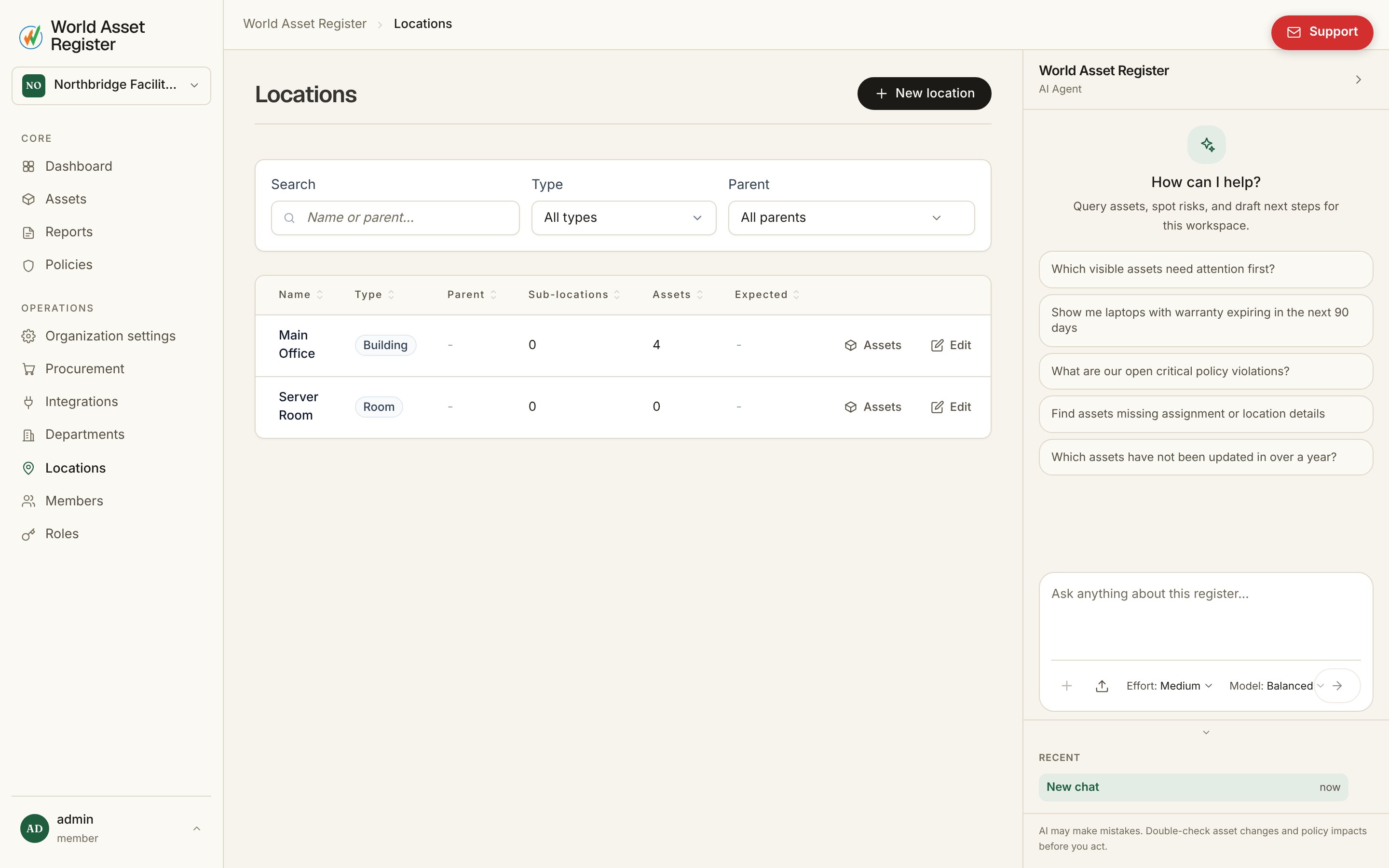
Five types, nesting top to bottom: Site → Building → Floor → Room → Rack. Each location has a parent (or none, for a top-level site) and can carry type-specific detail. A site records a street address, a building its code, a floor its number, a room its room number, and a rack its rack ID. The register shows each location’s parent, how many sub-locations sit beneath it, and how many assets are placed there.Adding and organising locations
Add a location, give it a name and type, and pick a parent. Choose “None (top level)” for a site, or any existing location for anything nested inside it. Search and the parent filter make it easy to find your way around a large hierarchy.Expected asset count
Every location can carry an expected asset count, the number you believe should be there, from a floor plan, a lease, or last year’s audit. Shown next to the actual count from the register, it turns “does this room have what we think it has?” into a glance rather than a physical walkthrough, and pairs naturally with a policy that flags the difference.Seeing what’s at a location
Click Assets on any location’s row to open every asset placed there in a modal, without leaving the list. This is handy when you’re deciding whether a room is safe to repurpose.A geographic map view, placing assets on real floor plans, is on the roadmap and will get its own chapter here once it ships.